

Basic operations
Copy for AI
easySales keeps a sale in one place: the customer, what you offered, what you invoiced and what has been paid. Every screen is built from the same four pieces — the frame, lists, records and forms — so once you know them you can work in any module. Read this page first, then sign in and try each move yourself.
The screen
Section titled “The screen”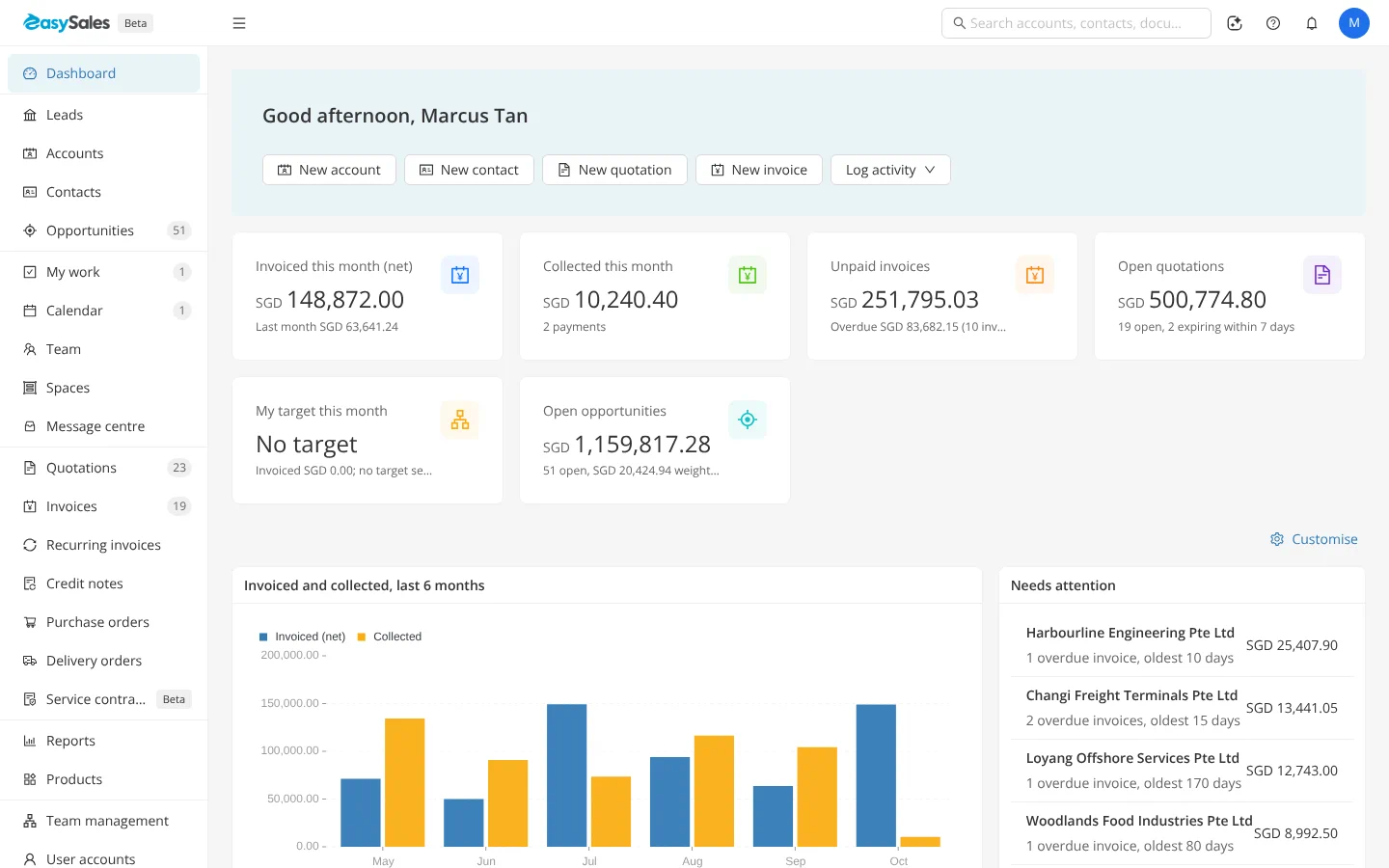
- The sidebar on the left lists the modules your role can use. Select one to open its list.
- The top bar holds the search box, which finds accounts, contacts, documents and opportunities; the AI chat button; Help Centre, which opens this help at the page for the module you are in; the bell for your messages; and your avatar, which opens your menu with Language, My profile and Log out.
- The page fills the rest. After you sign in it is the Dashboard, with buttons such as New quotation and New invoice to start work straight away.
More in The workspace.
Every module opens on a list. Type in the search box to narrow it, use Filters or the filter boxes in the toolbar, and select a column heading to sort. The button at the top right creates a new record, such as New invoice. Tick rows to act on several at once, and use ··· to export the list to Excel. See Lists and columns and Export and bulk actions.
Records
Section titled “Records”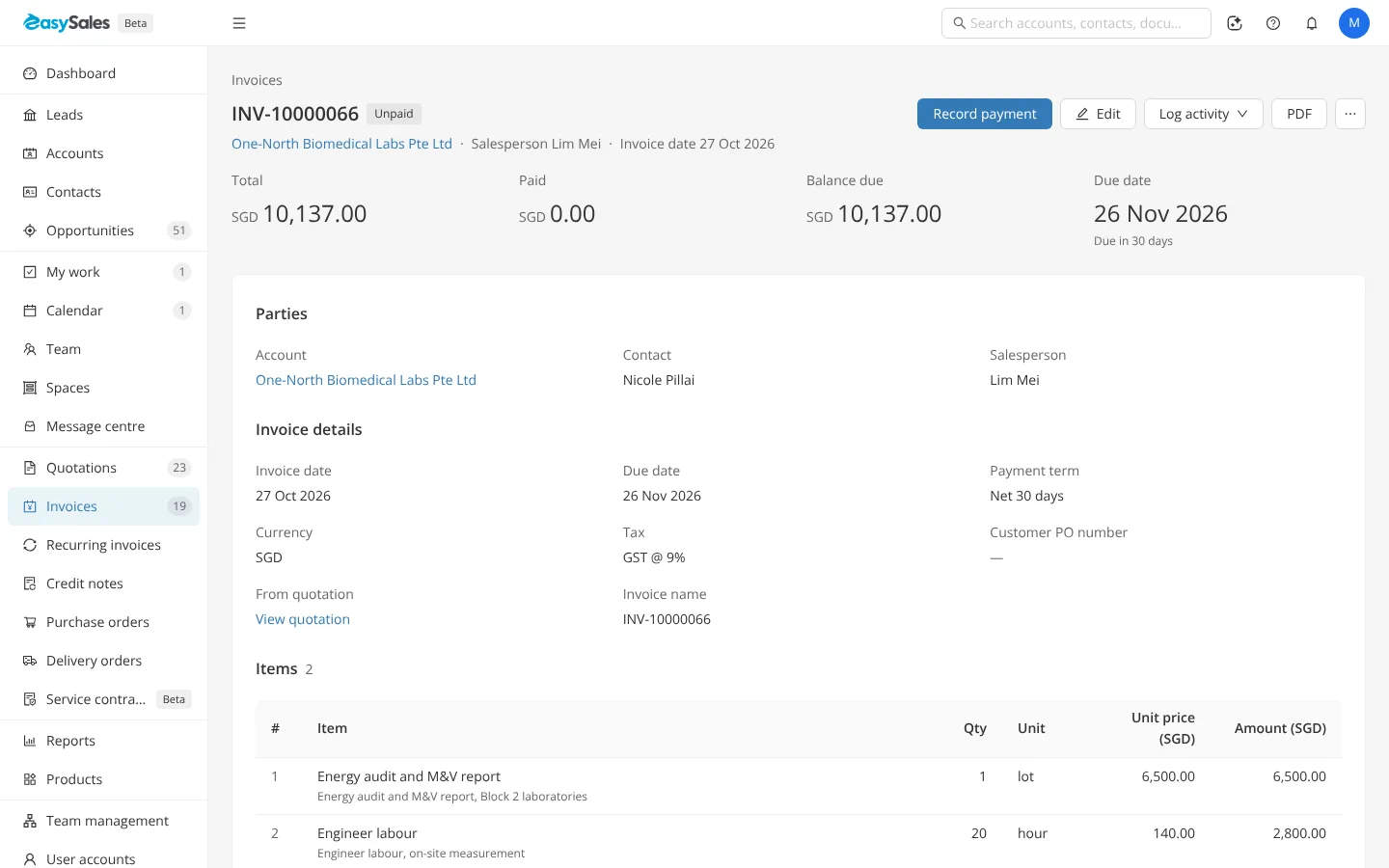
Select a row to open the record. The top shows its number or name and its status, with the next step as the coloured button — Finalise on a draft quotation, Issue invoice on a draft invoice, Record payment on an unpaid one. Beside it are Edit, Log activity, PDF on documents, and ··· for everything else. Below are the details, the lines and totals, and at the bottom Activities, Files and History.
New records and edits open as a form. Fields marked * are required. Search boxes such as Contact and the product on a line find existing records as you type. The bar at the bottom says whether you have Unsaved changes and holds Cancel and the save button, such as Create quotation.
What each module does
Section titled “What each module does”| Module | Use it to |
|---|---|
| Dashboard | See this month’s invoicing and collections, what is unpaid or overdue, and what needs you — Dashboard |
| Accounts and Contacts | Keep the companies or people you sell to, and the people you write to — Accounts, Contacts |
| Leads and Opportunities | Track enquiries and the deals you are working on — Opportunities |
| My work, Calendar, Message centre | Your tasks, events and messages in one place — My work, Message centre |
| Quotations | Offer prices to a customer, then raise invoices from the accepted offer — Quotations |
| Invoices and Recurring invoices | Bill the customer, record what they pay, and bill the same lines every period — Invoices, Recurring invoices |
| Credit notes | Reduce what a customer owes on an issued invoice — Credit notes |
| Purchase orders and Delivery orders | Order from suppliers and deliver to customers — Purchase orders, Delivery orders |
| Reports | Sales performance, quotation conversion, sales by customer or product, and who owes you — Reports |
| Products | The goods and services you sell, with prices, units and tax — Products |
| User accounts, System settings, Licence | For administrators: people and roles, company settings, and your plan — User accounts, System settings |
You see only the modules your role allows, for the modules switched on for your company.
Your first sale
Section titled “Your first sale”A sale runs down one path: quotation, invoice, payment. Each step has its own page with an animation of the clicks:
- Create a quotation — pick the contact, add lines, save.
- Raise an invoice from the quotation once it is finalised.
- Issue the invoice so it takes its number and counts as owed.
- Send the PDF to the customer and mark it as sent.
- Record the payment when the money arrives.
The whole run, with one real customer, is in Your first 30 minutes.
Common questions
Section titled “Common questions”- Where do I start after signing in? On the Dashboard. Use its New quotation or New invoice button, or open a module from the sidebar.
- Why is a module missing from my sidebar? Your role does not allow it, or it is not switched on for your company. Ask your administrator.
- How do I find a customer quickly? Type part of the name in the search box at the top. Press / to jump to it from anywhere outside a text box.
- How do I change the language? Open your avatar menu at the top right and choose Language.
- Do the animations show my company’s data? No. They are recorded in a demonstration company with invented customers and amounts.