

Sign in
Copy for AI
Use this page to sign in to easySales with the details your administrator gave you. Each company has its own separate workspace — see Licence and users.
Before you start
Section titled “Before you start”Your administrator creates your account; if your company is new to easySales, see Start a free trial first. Have your email address or username and your password ready. If you sign in with a username, you also need your company’s Licence code. Always sign in as yourself, so the history of who changed what stays true.
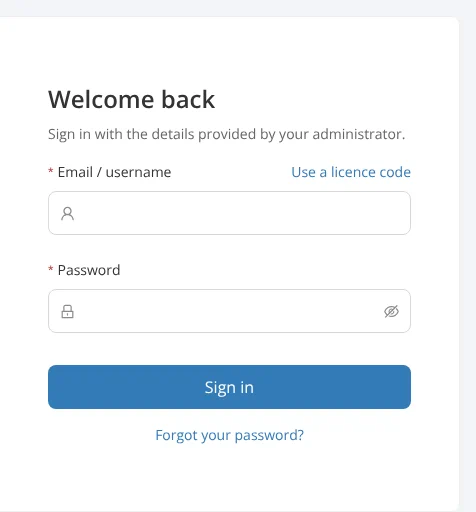
- Open the easySales sign-in page, headed Welcome back. To change the page’s language, use the language menu with the globe at the foot of the page, under the sign-in card.
- In Email / username, type your email address or your username.
- If you typed a username, a Licence code box opens when you leave the first box. Enter your company’s licence code. To add or remove the box yourself, select Use a licence code or No licence code.
- Enter your Password and select Sign in. If you have forgotten it, select Forgot your password? under the button.
- If you have turned on two-step verification, the Two-step verification step opens. Enter the 6-digit code from your authenticator app, or from the email easySales has just sent you, in Verification code and select Verify. To use a passkey instead, select Use a passkey instead, then Use your passkey, and confirm on your device; when a passkey is your only method, Use your passkey is shown first. With a code, tick Don’t ask again on this device for 30 days on a computer only you use.
If you have set up a passkey, you can instead select Sign in with a passkey and skip the password. Without your phone, select Use a recovery code instead and enter one of the recovery codes you saved. If you have none of these, ask your company’s administrator — see Get back in. How the methods fit together is on Sign-in security.
If your company requires two-step verification and you have not set it up, a banner asks you to set it up before a date; after that date, Set up two-step verification opens after your password — see Company security settings.
If your administrator reset your password, sign in with the temporary password they gave you. Choose a new password opens next, after any verification code or setup. Enter a New password of at least 8 characters, different from the temporary one, type it again in Confirm password and select Save and sign in. Nothing else in easySales works until you do.
What happens next
Section titled “What happens next”The Dashboard opens — see Dashboard and The workspace. If you opened a link to a record, such as a quotation a colleague sent you, that record opens instead. The page always opens ready for an email address. If you last signed in with a licence code, this browser keeps that code, and Use a licence code brings it back already filled in.
Rules to know
Section titled “Rules to know”- Details that do not match give one message, whichever part was wrong. After an email address it reads Those details did not match. Check your email and password. and adds that, if your email belongs to more than one company or you sign in with a username, you use the licence code link. With a licence code it reads Those details did not match. Check the licence code, username and password.
- If the server cannot be reached or has a fault, the message is We couldn’t reach the server. Please try again in a moment. It does not mean your details were wrong.
- A deactivated account or licence has its own message: contact your administrator. So does a company that has not yet moved to this easySales. A suspended licence lets only administrators sign in: This licence is suspended. Only administrators can sign in; ask yours to contact us.
- Five failed attempts from one internet connection lock that username there for a minute; each further attempt doubles the wait, up to fifteen minutes. While locked, even the right password gets the same message. Wait, or reset your password. Sign in with a passkey still works.
- Twenty attempts from one internet connection within fifteen minutes lock that connection for fifteen minutes, whatever usernames were tried.
- A temporary password works for 72 hours from the reset. After that, ask your administrator to reset your password again.
- The code step lasts five minutes, or as long as an emailed code, up to fifteen. After that, sign in again. Five wrong codes lock code entry for a minute, then longer; the message says how many minutes to wait.
- At the foot of the page, About easySales, Help Centre, Terms of Service and Privacy open those pages.
- If your session ends while you work, you sign in again in a dialog over the page and keep what was on screen — see The workspace.
Why it works this way
Section titled “Why it works this way”One message for every wrong detail protects your colleagues. If easySales said “no such user” or “wrong password”, anyone could test which email addresses and usernames exist at your company and then concentrate on guessing their passwords. The same sentence for every mismatch, and for a locked username, tells them nothing.
Locks slow a guesser, not you. A person who mistypes loses a minute. A program trying password after password is cut to a handful of guesses an hour, while your passkey and the reset link keep working for you.
Signing in as yourself keeps the record honest. Every change in easySales is recorded under the person who made it — see Audit trail. A shared sign-in turns that record into guesswork for your manager, your accountant or an auditor, and when someone leaves, an administrator can deactivate one account instead of changing everybody’s password.
A second step stops a stolen password. A password can be reused elsewhere or typed into a fake page. With two-step verification, a password alone does not open your company’s customer list and invoices; the code or passkey on your own device is needed too.
Work faster
Section titled “Work faster”- Sign in with a passkey. Your fingerprint, face or screen lock replaces both the password and the code. Where the browser supports it, selecting the Email / username box also offers your saved passkeys. See Set up a passkey.
- Trust a computer only you use. Don’t ask again on this device for 30 days skips the code step on that browser; you still type your password. Remove trusted devices under Sign-in & security in My profile.
- Let your password manager fill the form. The boxes are marked as a username and a current password, so a password manager can save and fill them for you.
- Let this browser remember your licence code. After one sign-in with a code, Use a licence code brings it back filled in. Once you are in, the code is shown as Code on the Licence page in the sidebar — see Your Licence.
- Choose your language before you sign in. The globe menu at the foot of the page sets the same language as your own menu inside easySales — see The workspace.
Examples
Section titled “Examples”Signing in on a new laptop. Mei Tan of Lim & Co types her email address and password and selects Sign in. Her company uses two-step verification, so the Two-step verification step opens. She types the 6-digit code from her authenticator app, ticks Don’t ask again on this device for 30 days, because the laptop is hers alone, and selects Verify. The Dashboard opens. For the next 30 days that laptop asks only for her password.
An email address used by two companies. Daniel Lim keeps the books for Lim & Co and for a second company, with the same email address in both. When he signs in with his email, easySales answers Those details did not match. Check your email and password. and points him to the licence code link. He selects Use a licence code, enters Lim & Co’s code and signs in. The next time, Use a licence code brings that code back already filled in.
A locked username. On a Monday morning a new colleague at Lim & Co mistypes her password five times on the office computer. Her sixth try, with the right password, still says the details did not match, because the username is locked from that connection for a minute. She waits a full minute and signs in; the correct password clears the count. Had her first try after the minute also been wrong, the next lock would have lasted two minutes.
Common questions
Section titled “Common questions”- Why does easySales say my details did not match when my password is right? Either the username is locked after five failed attempts from your connection, or easySales needs your licence code. Wait a minute and try once more, or select Use a licence code.
- Where do I find my company’s licence code? Ask your administrator. Once anyone is signed in, the code is shown as Code on the Licence page in the sidebar.
- Can I sign in without a password? Yes, with a passkey you have added under Sign-in & security: select Sign in with a passkey on the sign-in page. See Set up a passkey.
- How long does a temporary password from my administrator work? For 72 hours from the reset. When you sign in with it, you choose your own password before anything else opens.
- I lost my phone. How do I sign in? Select Use a recovery code instead and enter one of the recovery codes you saved. Without any, ask your company’s administrator to reset your two-step verification; see Get back in.
- Can colleagues share one sign-in? easySales records every change under the account that made it, so a shared sign-in hides who did what. Ask your administrator to add a user for each person; see User accounts.
- What does “This licence is suspended” mean? Your company’s subscription needs attention, and only administrators can sign in until it is resolved. See Trial and subscription.